
What the file means
What is a Xournal++ .xopp file?
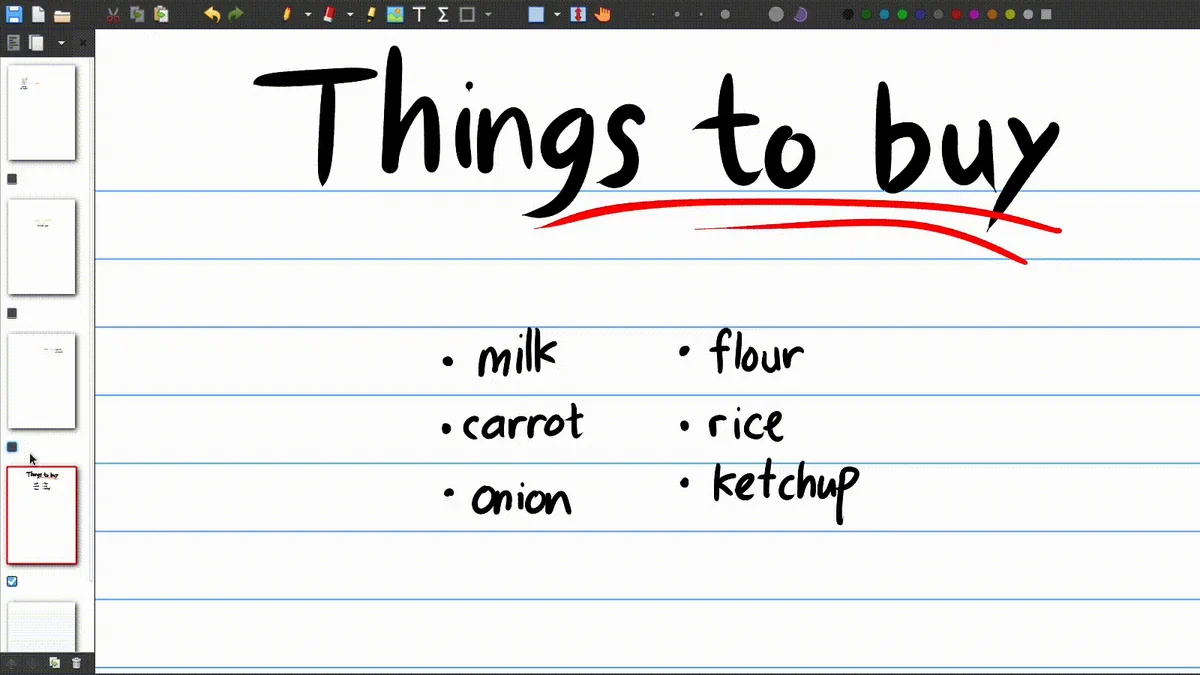
The .xopp extension is the native journal format used by Xournal++. It can contain pages with pen strokes, highlighter marks, text, images, shapes, LaTeX objects, layers and page settings. Because those elements remain separate and editable, the journal is the right source file when you expect to revise notes later.
A PDF export is different. It is a fixed document for sharing, printing or uploading, while the .xopp file is the working notebook. Exporting to PDF can flatten annotations into a document that is no longer editable in the same way. Keep the journal whenever the notes have value, and name the PDF as an output rather than as a replacement for the source.
File relationship
XOPP, PDF and autosave files
| File or folder | Purpose | Important detail |
|---|---|---|
| notes.xopp | Editable Xournal++ journal | Contains notebook structure and annotation objects. |
| source.pdf | PDF background | May be stored as a separate path referenced by the journal. |
| notes.pdf | Exported delivery copy | Convenient to print or share, but not the editable source. |
| .notes.autosave.xopp | Automatic recovery copy | Location depends on whether the journal was saved and the application cache. |
| Attached PDF | PDF copied with the journal | Attach mode makes moving a saved journal more predictable. |
Safe notebook workflow
Move a PDF notebook to another computer
Save the journal
Use Save As and give the notebook a clear name in a project folder, rather than leaving it in a temporary download directory.
Keep the PDF close
If the journal uses a separate background, keep the source PDF available and preserve the path relationship.
Use attach mode
When creating or saving a PDF journal, enable Attach file to the journal when you need the PDF copied beside the .xopp file.
Test the copy
Open the moved journal on the target computer and confirm every PDF page, annotation layer and export before deleting the original.
Missing background PDF
Why did my .xopp open without its PDF?
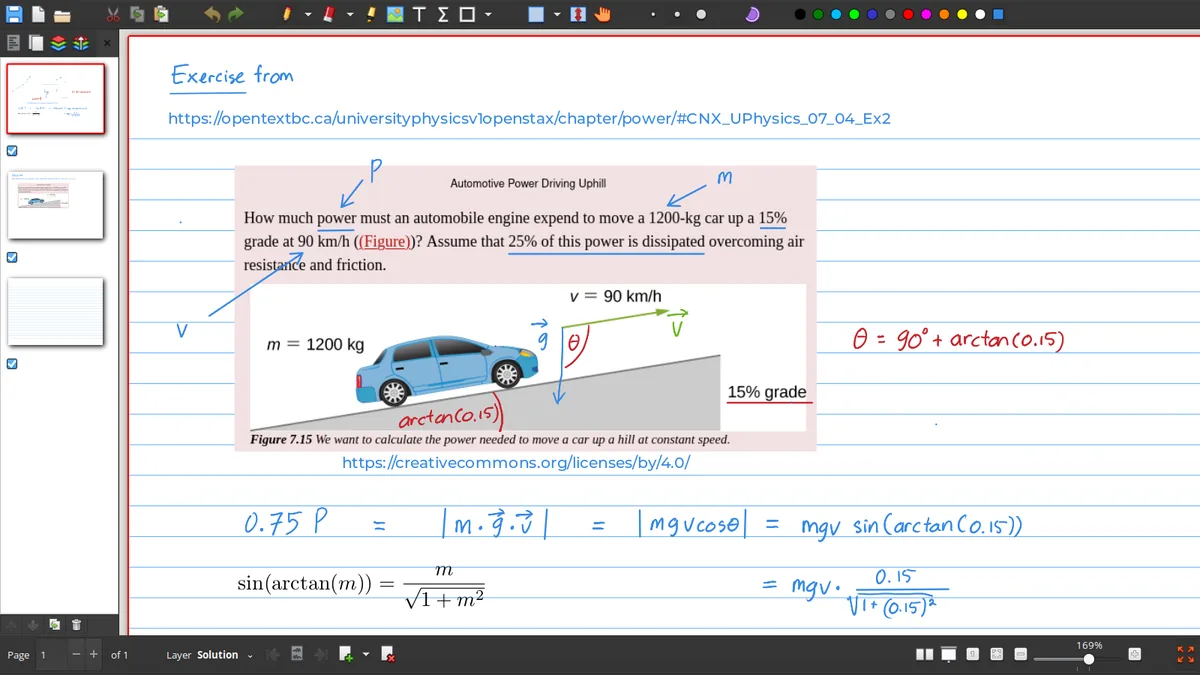
In the normal separate-file workflow, Xournal++ stores the PDF path in the journal. If the PDF is moved, renamed or left on another computer, the journal may ask you to locate it again. This is not necessarily a damaged .xopp file; it is often a missing background reference. Restore the original PDF or point Xournal++ to the new location, then save a controlled copy.
Attach mode is designed for a more portable PDF journal. The PDF is copied to the same directory when the journal is saved, and the journal stores a relative path. Use File → Save As when moving the project so that the relationship remains coherent. Do not replace the background with a different PDF just because it has the same filename: different page sizes or page counts can put annotations out of sync.
Recovery and versioning
What to do after a crash or mistaken save
If Xournal++ closes unexpectedly, look for the autosave copy before opening and saving over the original journal. An autosave is a recovery aid, not a permanent archive, so compare its page count and recent strokes with the original before choosing which copy to keep. Save the recovered notebook under a new filename until you are certain that its PDF background and layers are intact.
Version names make a larger difference than people expect. Add a date or revision number when a notebook is used for a class, review cycle or shared project, for example lab-notes-2026-08-14-r02.xopp. Export a PDF with the same revision marker and keep the source PDF unchanged. If the notebook references an attached background, copy the whole project folder rather than extracting only the .xopp file.
Archive checklist
Open the backup before you trust it
A backup is only useful if it can be reopened. Once a project is copied, open the .xopp journal from the backup location, confirm that the background PDF is visible and inspect a page with handwriting, an image or a shape. Export a short PDF from that copy and compare it with the expected page count. This catches broken relative paths, incomplete cloud sync and accidental copies of an old journal while the original is still available.
Notebook portability
Keep Xournal++ XOPP files portable
Xournal++ XOPP files are editable notebooks, not ordinary exported PDFs. A journal can contain handwriting, layers, text objects and page structure, while its PDF background may be attached or referenced as a separate file. Before moving a notebook to another computer, open a copy and check whether the pages still show their background. If the background is separate, move it with the journal or use an attachment workflow when the resulting file size and compatibility are acceptable.
The safest Xournal++ XOPP files workflow uses three related names: the source PDF, the editable .xopp notebook and the exported PDF. Save the .xopp file before exporting, keep a backup before replacing a background and test the exported PDF in another viewer. Autosave can help after a crash, but it is not a complete backup plan. If an XOPP file is sent to someone who does not have Xournal++, provide a PDF copy as well. This Xournal++ XOPP files guide keeps editing, portability and sharing as separate decisions.
For important Xournal++ XOPP files, add the notebook, its background PDF and one exported PDF to the same backup set. Open that set from a second folder before archiving it. A one-minute XOPP check can reveal a broken path, missing attachment or stale revision while the original is still safe.
Frequently asked questions
Xournal++ Frequently asked questions
How do I open a .xopp file?
Install Xournal++ for your desktop platform and open the .xopp journal from the File menu or your file manager. Keep its PDF background available if the journal references one separately.
Can I convert .xopp to PDF?
Yes. Open the journal in Xournal++ and use the PDF export workflow. Keep the .xopp file because the exported PDF is a fixed copy.
Why is the PDF background missing from my XOPP file?
The journal may store an absolute path to a separate PDF. Restore the file, select its new location when prompted or use attach mode for a future portable copy.
Where are Xournal++ autosave files stored?
After a journal has been saved, an autosave file is normally placed as a hidden file near the journal. An unsaved document uses the application cache folder. Check the official file-location guide for platform-specific paths.