
Architecture check
Apple Silicon or Intel?
| Mac type | Choose | How to identify it |
|---|---|---|
| Apple Silicon | macOS ARM64 DMG | The processor is Apple M-series |
| Intel | macOS X64 DMG | The processor is Intel |
| Unsure | Check About This Mac | Do not guess from the Mac model year |
First launch
Install Xournal++ on macOS
Check the chip
Use About This Mac to identify Apple Silicon or Intel before opening a DMG.
Open the DMG
Mount the downloaded disk image and move Xournal++ to Applications when prompted.
Allow the app
If macOS asks for confirmation, review the developer and source before allowing the official build.
Test a notebook
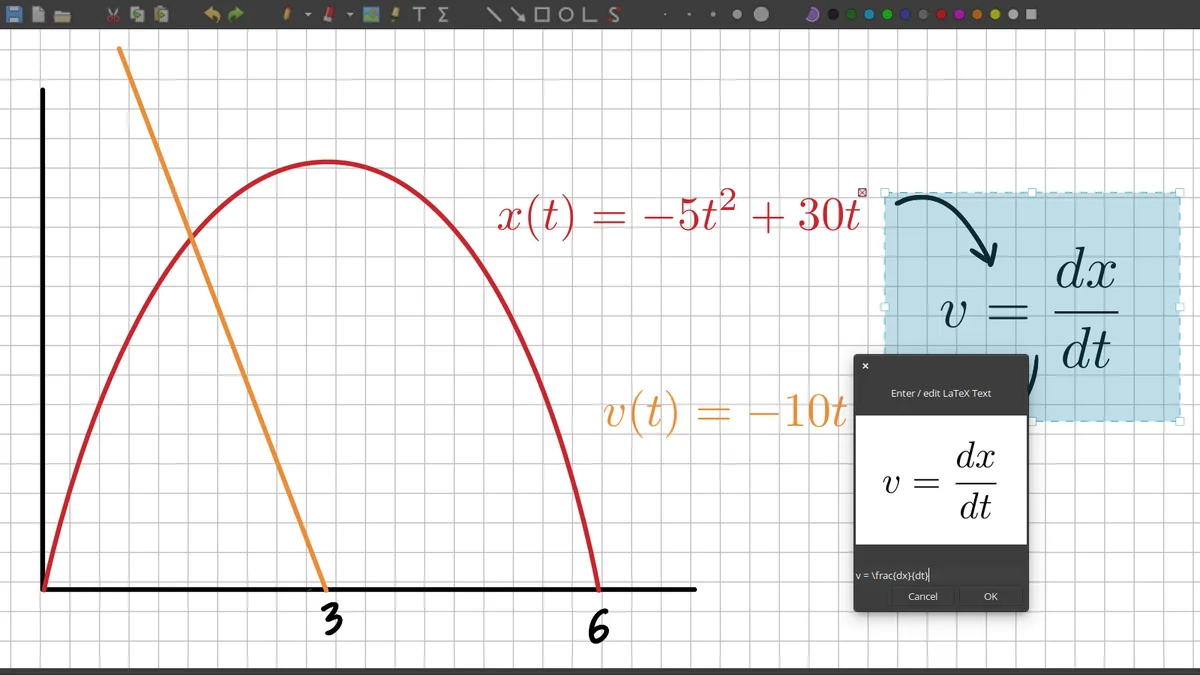
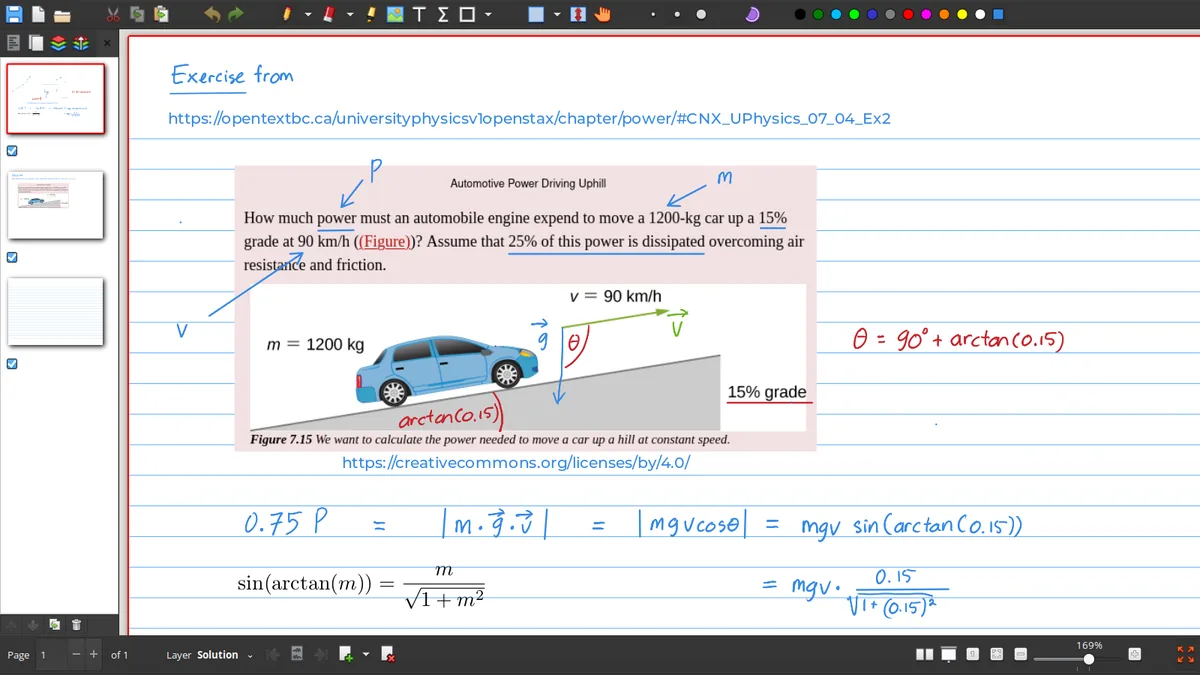
Open a PDF, write a short note, save .xopp and export a PDF to confirm the workflow.
PDF and files
Keep the editable notebook separate from the export
Xournal++ is most useful when the editable .xopp notebook remains available. The exported PDF is convenient for sharing, but it is not the same as the source notebook with its page structure, layers and future editing context. Store the background PDF beside the notebook when the workflow depends on it.
If a file opens in Finder but not from inside Xournal++, check the folder permission and whether the source PDF was moved. A macOS backup or cloud-sync workflow can also change paths, so use stable project folders for important notebooks rather than scattering the PDF and .xopp file across temporary locations.
Permissions and backups
Make macOS file access predictable
A successful DMG install does not guarantee that every folder will behave the same way. If Xournal++ cannot open a PDF from a cloud folder, external drive or protected location, test a copy in a simple folder under your user account. This helps separate a notebook problem from a macOS privacy or file-provider prompt. Once the basic workflow works, choose a stable project folder and grant access only when macOS asks for it.
Cloud synchronization can create a second version of a PDF while the .xopp journal still points to the first path. Before switching computers, close the notebook, wait for the sync status to finish and open the copy on the target Mac. Keep the source PDF, journal and exported PDF under a clear project name. If a conflict file appears, do not overwrite the newest journal until you have compared the page count and recent annotations.
For a pen display or tablet, run the same blank-page test after installation and after a macOS update. Confirm that the pointer, pen tip, eraser and pressure behavior are stable before annotating a long document. The stylus guide is useful when the DMG launches correctly but input still feels wrong.
Architecture mistakes
What happens if you choose the wrong DMG?
The architecture label describes the processor family, not the age or screen size of the Mac. Apple Silicon means an Apple M-series processor; Intel means an Intel processor. If a DMG will not open, the first check is the processor line in About This Mac, followed by the download filename. Do not install a second copy from an unofficial mirror simply because the first file produced a security or architecture message. Use the official release page to compare the asset names, then remove only the copy you no longer need after confirming that your notebooks are backed up.
A clean first-launch test should include opening a PDF, drawing with the input device you plan to use, saving a .xopp file and exporting one PDF. This exposes permission, architecture and file-path issues while the test document is still disposable.
Before a real project
Use a disposable notebook for the first test
Create a short blank page or use a non-sensitive PDF for the first launch. Test the pen, text, shape, save and export actions, then reopen the journal from Finder. This confirms that the app has the access it needs without risking a research notebook or a synced class folder. Once that test passes, move to a stable project location and keep the source PDF beside the editable .xopp file when the workflow depends on it.
Mac architecture check
Confirm the Mac before the Xournal++ macOS download
The Xournal++ macOS download is split by processor architecture. Apple Silicon Macs use the ARM64 DMG, while Intel Macs use the X64 DMG. If you are unsure, open About This Mac and read the processor line before choosing a file. A correct architecture usually makes the first launch simpler, while a mismatched DMG can create confusing permission or compatibility messages that look like an application problem.
After the Xournal++ macOS download completes, open the DMG from the official release, move the application according to the normal macOS workflow and test it with a copy of a PDF. Save the editable .xopp notebook somewhere you can back up, and export a PDF only when you need a fixed copy. If macOS asks whether to open a downloaded application, verify the source and file name first. This Xournal++ macOS download guide also covers the practical boundary: it is a desktop app, so an iPad or browser workflow needs a separate compatible PDF or note application.
Frequently asked questions
Xournal++ Frequently asked questions
Which Xournal++ download is for an M1 or M2 Mac?
Choose the macOS ARM64 DMG. Apple Silicon refers to Apple processors such as the M-series.
Which Xournal++ download is for an Intel Mac?
Choose the macOS X64 DMG and confirm the processor in About This Mac.
Why can I not open the downloaded DMG?
Check that the architecture matches your Mac and review macOS security prompts for a file downloaded from the official project release.
Can I save handwritten notes as PDF on macOS?
Yes. Keep the .xopp notebook for editing and export a PDF when you need a fixed document for sharing or printing.